I switched from Manjaro KDE to Omarchy two weeks ago. After years of tweaking KDE configs, fighting with theme inconsistencies, and maintaining dotfiles across updates, I wanted something that just worked.
Omarchy is a keyboard-first Arch Linux distribution created by David Heinemeier Hansson (Ruby on Rails creator). Hyprland tiling window manager with opinionated defaults. No hunting through settings panels. No per-component theme configuration. The entire system switches themes with a single keybinding.
The first week was painful. The second week, it clicked.
Why Omarchy Stands Out
System-Wide Theme Switching
Hit Super + Ctrl + Shift + Space and your terminal, window borders, status bar, notifications, application launcher, and lock screen all switch themes simultaneously. No per-component configuration required.
Zero Configuration Overhead Pre-installed tools are configured to work together aesthetically and functionally. Full-disk encryption is mandatory. Firewall enabled by default. Everything just works.
Keyboard-First Design Not “keyboard shortcuts as an afterthought,” but genuinely keyboard-first. Tiling window management, workspace organization, and application launching are all faster from the keyboard.
Arch Power Without Complexity Rolling release updates, access to AUR packages, and full Arch flexibility—but managed through a simple menu system instead of manual configuration files.
Pre-Configured Tooling Neovim with LazyVim, Alacritty terminal, LazyGit, LazyDocker, and more. All configured to respect the system theme and work together seamlessly.
Installation Requirements
Omarchy requires a dedicated drive with full-disk encryption. No dual-boot on a single drive (you can use two physical drives for dual-boot).
Basic steps:
- Download ISO from omarchy.org
- Write to USB drive (balenaEtcher or
dd) - Disable Secure Boot in BIOS (required; TPM settings vary by system)
- Boot from USB and follow installer
Installer asks for:
- Target drive selection
- Username and password
- LUKS encryption passphrase
Installation takes about 25 minutes. First boot drops you at a blank screen with a cursor—this is intentional.
Essential Keybindings
These five keybindings get you started:
| Keybinding | Function |
|---|---|
Super + Space | Application launcher |
Super + Alt + Space | Omarchy Menu (all system settings) |
Super + Enter | Terminal |
Super + W | Close window |
Super + 1/2/3/4 | Switch to workspace 1/2/3/4 |
Window management:
Super + Shift + Arrow- Move windows between monitorsSuper + J- Change tiling orientation (horizontal/vertical)Super + F- FullscreenSuper + T- Make window floating
System operations:
Super + Ctrl + Shift + Space- Theme switcherSuper + Alt + Space- Omarchy Menu (install packages, update system, configure settings)
Configuration Files
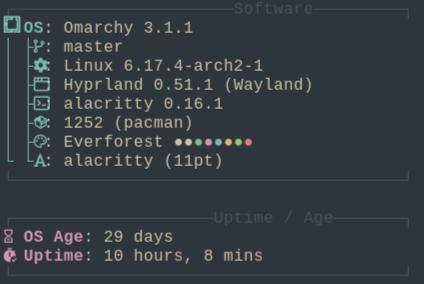
Everything lives in ~/.config/:
~/.config/hypr/hyprland.conf- Keybindings and Hyprland settings~/.config/alacritty/alacritty.toml- Terminal configuration~/.config/waybar/config.jsonc- Status bar settings
Edit through Setup > Configs in Omarchy Menu, which automatically restarts relevant services after saving.
The Trade-offs
What you give up:
- Mouse-primary workflows (keyboard is the primary interface)
- Extensive customization options (opinionated defaults)
- Visual discoverability (no tooltips or GUI hints)
- Single-drive dual-boot (dedicated drive required)
- Gradual migration (all-or-nothing learning curve)
What you gain:
- Massively reduced configuration overhead
- Faster context switching with workspace-based organization
- Consistent aesthetics across all components
- Keyboard-first workflow designed in from the start
- Arch rolling release without configuration complexity
- Full-disk encryption by default
Learning curve: Expect a steep initial learning curve. The keyboard-only workflow requires conscious effort for the first week or two. There’s no gradual migration path—you either commit to learning it or you don’t.
Compatibility: Hyprland is Wayland-only. Most modern applications work fine, but some legacy tools expect X11. Screen-sharing and some older GUI applications may require Wayland-native alternatives.
Who Should Try Omarchy
Try Omarchy if you:
- Spend most of your time in terminal-based workflows
- Want keyboard-first interaction designed in from the start
- Prefer opinionated defaults over infinite customization
- Are comfortable with steep initial learning curves
- Have a dedicated drive available (or second machine for testing)
- Already use tiling window managers or want to learn them
Stick with traditional desktops if you:
- Need extensive mouse-driven workflows
- Require specific GUI applications expecting traditional window management
- Want gradual learning curves
- Prefer customizing every detail yourself
- Need dual-boot on a single drive
- Work primarily with GUI-heavy applications
Getting Started
The Omarchy Manual is excellent. Read at least the “Getting Started” and “Navigation” sections before your first boot. The manual explains the philosophy, essential workflows, and troubleshooting.
Recommendation: If you’re unsure, try Omarchy on a spare machine or dedicated drive first. The all-or-nothing nature makes it high-risk as a primary system without testing first.
Commit to at least two weeks before deciding. The first week is painful. The second week is when the workflow starts clicking.
Resources
- Official site: omarchy.org
- Manual: learn.omacom.io
- GitHub: github.com/basecamp/omarchy
- Hyprland docs: wiki.hypr.land
Omarchy delivers on its promise: a keyboard-first Linux desktop that works out of the box. The trade-off is real—you give up mouse workflows and extensive customization—but for terminal-heavy developers tired of desktop environment configuration, it’s an excellent choice.